Related Posts Widget for Blogger/Blogspot with Images
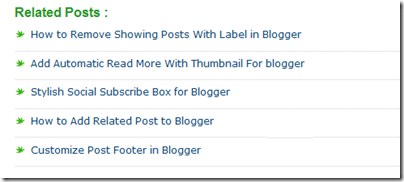
Related Posts Widget for Blogger
How to add Related Posts Widget to Blogger

Related posts Widget will generate the list of linked or connected posts . This Widget can be added either in homepage (under each posts) or inside the post. By placing this related posts Widget, there is chance to spread the other similar posts to visitors and they may have a tendency to take that post from the list, it will reduce the bounce rate of your blog and will keep your visitors from suddenly quit from your blog. Let's see how to add related posts widget to your Blogger site.


How to add Related Posts Widget to Blogger

Step 1. Log in to your Blogger Dashboard, then go to Template and click Edit HTML.
Step 2. Find below text from search (Ctrl + F)
]]></b:skin>

Step 3. Copy and paste the given code above this line.

<!--BlogTipsUK Related Posts with thumbnails Start-->
#related-posts {
float:center;
text-transform:none;
height:100%;
min-height:100%;
padding-top:5px;
padding-left:5px;
}
#related-posts h2{
font-size: 18px;
letter-spacing: 2px;
font-weight: bold;
text-transform: none;
color: #5D5D5D;
font-family: Arial Narrow;
margin-bottom: 0.75em;
margin-top: 0em;
padding-top: 0em;
}
#related-posts a{
border-right: 1px dotted #DDDDDD;
color:#5D5D5D;
}
#related-posts a:hover{
color:black;
background-color:#EDEDEF;
}

<!--BlogTipsUK Related Posts with thumbnails End-->

Step 4.  Copy and paste the below code where you want to show the related posts.
<b:if cond='data:blog.pageType == &quot;item&quot;'>
<div id='related-posts'>
<b:loop values='data:post.labels' var='label'>
<b:if cond='data:label.isLast != &quot;true&quot;'>
</b:if>
<script expr:src='&quot;/feeds/posts/default/-/&quot; + data:label.name + &quot;?alt=json-in-script&amp;callback=related_results_labels_thumbs&amp;max-results=6&quot;' type='text/javascript'/></b:loop>
<script type='text/javascript'>
removeRelatedDuplicates_thumbs();
printRelatedLabels_thumbs(&quot;<data:post.url/>&quot;);
</script>
</div><div style='clear:both'/>
</b:if>
<b:if cond='data:blog.url == data:blog.homepageUrl'><b:if cond='data:post.isFirstPost'>
<a href='http://www.blogtipsuk.com/2014/03/related-posts-widget-images-for-blogger-blogspot.html' >Related Posts</a></b:if></b:if>

Change red color to change number of posts displayed in widget.

Step 5.  Find below text from search (Ctrl + F)

</head>

Step 6.  Copy and paste the below code above this line.
<script type='text/javascript'>
var defaultnoimage="https://blogger.googleusercontent.com/img/b/R29vZ2xl/AVvXsEiGUq7NAnZ0U-q_NtQZ7ssBVU2Yy8Ag_YLz7mXQrx5iTuWnsUPY_Bt4GLtTmX6W4VU0k96RrOHeZIEmbFEe-RzR9p3xm-qaThzdARWaBmlC_yhUe4pzq-cr7fsqjutb4VQiYvqxqGKvSvA/s400/noimage.png";
var maxresults=6;
var splittercolor="#DDDDDD";
var relatedpoststitle="Related Posts";
</script>
<script src='https://googledrive.com/host/0Bxhkdxy8J6szQ2tCNUJJdllKVVk/' type='text/javascript'></script>

Change the red value to show number of posts. Change the green color to change color of splitter line between posts. Change the blue color to change Name of title.

 I hope this article will help you.We have just ​added a Related Posts Widget to Blogger. If so please like and share our blog. You can check here more Exciting Blogger Widgets.
Add Facebook Comment Box to Blogger/Blogspot

Facebook Comment Box in Blogger
Facebook comment for your blog can serve as a good way to make your site more engaging and encourage readers to drop comments if they're already logged in to Facebook. It also serves as a source of traffic since using Facebook comment shares the comment and post page on the visitor’s viewer's Facebook wall. One thing should be noted though: Facebook comment has no SEO value since it’s being displayed in an iframe which Google won't index. Comments made with the regular comment box on your site has more advantages especially if you get loads of comment, more keywords you didn't actually mention in the post content but appearing in comments do bring more search engine traffic. This is something Facebook comment lacks, except the extra traffic you get from Facebook.

I just thought you should know that before you implement it on your blog. As you can see, I do use it too. I wrote a post on this particular topic earlier but Facebook has changed since, lots of things on the post may not look exactly as explained. Also, this one has a feature the previous one didn't have – getting notified of every comment made on your blog.

Also Read: Add social media FB buttons in Blogger

How to add Facebook comment box to Blogger Blogspot Blogs

There are about five steps to get this done. Just follow the steps and you'll have a nice Facebook comment box installed on your blog in no time.

1. Creating a Facebook Application:

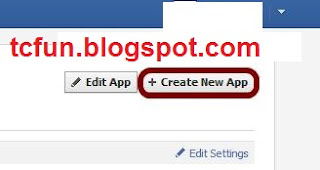
i. Head on to facebook developer page, you should create a new app by clicking the button at the top right.
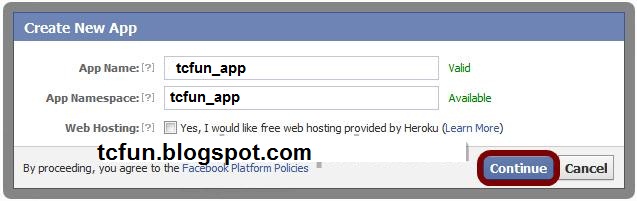
ii. Enter your application name and namespace,input the captcha code and proceed.
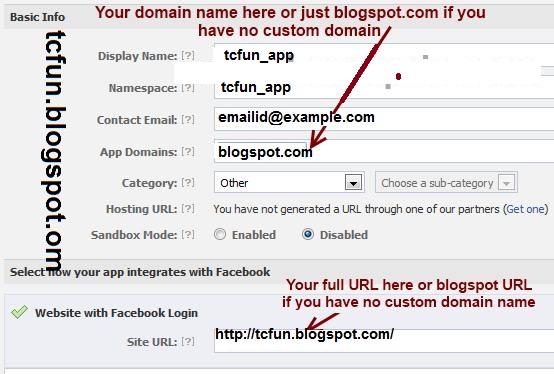
iii. On the next page, enter your custom domain name (if you’re using a custom domain) or just blogspot.com (if you’re using blogspot sub domain) in the space provided for App domain.

For App website, enter your blog URL. ( http://www.xyz.com/ or http://xyz.blogspot.com/ ). Be sure it starts with http:// and ends with / as shown in the screenshot below:
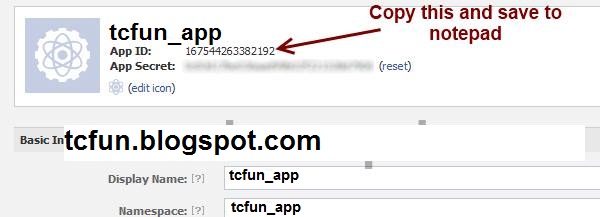
iv. Scroll down a bit and hit the Save Changes button. Now you're done with creating your facebook application but there's one more thing to do. On that same page, you should see your application ID. Copy it and save somewhere, you're gonna be needing it.
Now let's head to your blog and add following html codes to add facebook comment box.

2. Add html codes to your template for Facebook Comment Box 

Add these four sets of codes into your template to make this comment box work in your blog site.

Step 1. Log in to your blogger account and click on Template > Edit HTML
i. Press Ctrl + F and search for this code
<html
This should be found on the second or third line of your template.
Right in front of this, add the following code:
xmlns:fb='http://www.facebook.com/2008/fbml'
>>Be sure to have a space before and after this code. Take a look at the example below:
<html xmlns:fb='http://www.facebook.com/2008/fbml' expr:dir='data:blog…………..2005/gml/expr' >
ii. Press CTRL + F on your keyboard and search for this:
<body>
If you can't find this, search for something similar. You should search for this instead:
<body expr:class='&quot;loading&quot; + data:blog.mobileClass'>
Get Facebook LikeBox Widget

In the next line, paste this code:
<div id="fb-root"></div>
<script>
window.fbAsyncInit = function() {
FB.init({
appId : 'YOUR APPLICATION ID HERE',
status : true, // check login status
cookie : true, // enable cookies to allow the server to access the session
xfbml : true // parse XFBML
});
};
(function() {
var e = document.createElement('script');
e.src = document.location.protocol + '//connect.facebook.net/en_US/all.js';
e.async = true;
document.getElementById('fb-root').appendChild(e);
}());
</script>
Be sure to replace YOUR APPLICATION ID HERE with the application ID I asked you to copy earlier, remember?
iii. Now, let’s add the open graph meta tag. Search for this code in your template:
</head>
In the line above it, paste this piece of code:
<meta property="fb:app_id" content="YOUR_APP_ID" />
Replace YOUR_APP_ID with that same application ID you previously copied.

iv. Now here’s the last part of tweaking your template your template to make it display Facebook comment box. The last thing is the iframe to display the comment box where you want. Search for this in your template:
<data:post.body/>
If you’re using a magazine style template, you’re likely to have more than one occurrence of this. Using the wrong one won’t make the comment show up. If you’re not sure about which one to use, search for this instead:
<div class='post-footer-line post-footer-line-1'>
In the line just below it, paste this code:
<b:if cond='data:blog.pageType == &quot;item&quot;'>
<style>
.blogtipsuk-fb-comments
{
-webkit-border-radius: 5px;
-moz-border-radius: 5px;
border-radius: 5px;
border:1px solid #BBBBBB;
background-color:#F2F2F2;
-webkit-box-shadow: #B3B3B3 5px 5px 5px;
-moz-box-shadow: #B3B3B3 5px 5px 5px;
box-shadow: #B3B3B3 5px 5px 5px;
padding: 5px;
margin: 10px;
}
</style>
<p align='center'>
<div align='center' class='blogtipsuk-fb-comments' style='background: #f2f2f2;'>
<font size='6'><strong>Love to hear what you think!</strong></font>
<br/>
<script src='http://connect.facebook.net/en_US/all.js#xfbml=1'/>
<div><fb:comments expr:href='data:post.url' expr:title='data:post.title' expr:xid='data:post.id' width='450'/></div><div align='right'>[
<a href='http://bloggerseotipstraining.blogspot.com/' target='_blank'><small>Blogger Widgets</small></a> | <a href='http://bloggerseotipstraining.blogspot.com/2014/03/add-facebook-comment-box-to-blogger-websites.html' target='_blank'><small>Facebook Comments in Blogger</small></a>]</div></div></p></b:if>
Save your template, the Facebook comment form should now appear. If it looks rather small, replace width=’450′ with width=’600′. This increases the width from 450px to 600px.

Get Free SEO for Blogger

If this works for you, you can say thank you by sharing on Facebook, hitting the Google +1 button or simply using the comment box. Also, it would be nice of you not to remove the credit link to allow others find this useful widget. If you're having problems implementing this as well, don’t hesitate to let me know maybe I can be of help.

How to Earn Money from new Blogger blogs or Blogging

Earn Money from Blogging
Today I’ll teach you some easy ways to earn online money from writing free blogs. This post contains all the ways for online earning with blogs and will help you to know all the basic aspects of blogging. People think internet is a place to become rich in days without much effort but in my opinion 1st simple rule of success is hardworking with some knowledge.

Following this rule Blogging is not a process to become rich in days but it is a long term process with hard word and passion. According to a survey only 9% bloggers are able to make more than 100$ a month. There are many bloggers who cannot even go to 100$ in their entire blogging career. But let me tell you It is possible to make money blogging, but it takes time and a lot of hard work.

Before working blogging online following points must be kept in mind.

You must know:
  • Basic computer skills.
  • Basic internet surfing knowledge.
  • You must understand and write English.

Starting a Blog at Blogger.com for Online Earning

First step is starting a free blog online. There are many online websites which offers free online blogging space. But my recommendation is at blogger.com. Due to wide range of easy and salient features of blogger.com blogs is the best free blogging platform online. How to start a free blog

Following points should be kept in mind before making a blog online:
  • Think of a topic to write about, something you like most or have prior knowledge about.
  • Make title of your blog and write posts about that topic (of your choice).
  • Blog style matters, make your blog look beautiful by applying blogger templates of your choice.
  • Choose attractive blogger templates at Btemplates , Deluxe Templates

Get more Traffic to your Blog by SEO 

Now that you have started writing blog of your choice. But think yourself who is visiting your blog, I mean what number of people are actually reading your blog. So it is time to get some traffic to your blog. By traffic I mean a lot of people (like in thousands). This will lead you to a successful blogger. To get so much heavy traffic to your blog, firstly you have to do SEO of your blog, on-page SEO and off-page SEO both are very necessary to bring organic traffic to your blog. It tells search engines what your site really is about, according to which your blog will be showed to the required traffic who actually wants to read it.

Also make your blog a place worth visiting. I mean blog design should be simple but look attractive. And content on your blog should also be informative and constructive. Read these basic Tips to increase blog traffic

If you do not know anything about SEO, then do not worry. You can ask me for Blogger SEO Services at very low cost.

Put Ads on your blog to earn money online

After doing SEO and writing good content on your blog. You will need some advertising sites to put ads on your blog to earn online income. These sites give you codes for their ads to put on your site and give you commision when somebody click on these ads. Following are some of the best ads publishing sites from which you can earn money by displaying their ads on your newly started low traffic blog. See a list of Best Earning Sites for Blogger.

My Recommendations:

  • When you start a blog, try to write at least 3-4 articles(posts).
  • Then do the SEO of your blog. (or hire me for blogger SEO )
  • Now its time to test your writing skills. Try to write as many articles as you can (at the most 20-40).
  • After 2 months, you will be getting around 1000+ visitors per day.
  • Its time now to put ads on your blog.
  • See a list of Best Earning Sites for Blogger.

Increase Traffic to new Blogs easily

Increase Blog Traffic easily
Friends today's post is about secrets on how to get more visitors/high traffic to your blog or website with easy steps. These steps include the very simple and easy steps which you implement in your blog site and get visitors from the best search engines like Google, Ask, Bing etc. This post contains beginners guide on how to get high traffic to your blog by SEO, Social Media sites, blog and post style etc.

How to increase organic traffic with SEO on blogger

The best technique to increase visitors to your blog is by doing SEO in your blogs. With basic SEO and some simple keywords research, you can make your website favorable for search engines and thousands of people will come to your site daily.

Beginners SEO:
Following are the some basic SEO tips which you must include in your blog to get your blog appear in search engines.

Firstly submit your blog in search engines, this will tell search engines about your new blog then their robots will take a look in your site and after a few days your site will start showing in search results.

Secondly include meta tags in your blog html. Title and description tags in all pages is the best way to tell search engines about your site content. Because search engines robots see your blog's title and description and these title and description tags are then shown in search results (for more info on title in search results see this).

Then you should change your Blogger settings for SEO. See following posts and edit accordingly.
If you don’t know anything about SEO, then do not worry. You can get free SEO for blogger here.

Advance SEO:

Blog Design helps in SEO

You must take care of these simple points before writing posts in your blog. The most important point in blogging is your blog style. Your blog should be simple with some graphics. It should load faster. Following points must be kept in mind regarding your blog style.

  • Blog style should be simple but look professional.
  • Blog loading time should be faster.
  • Blog content should be qualitative (posts should be informative for readers).
  • All posts should be relative to your blog title (main idea of your blog).
  • Use keywords in posts title and body (link to post)
  • Allow comments in your blog

Share blog posts to social media for more visitors

Share your blog posts on social media regularly on sites like Facebook and Twitter. Be active on social media sites , make a Facebook page and Twitter ID and share your blogger posts there. 
  • Make a Facebook page and share your posts daily.
  • Make twitter account and be regular there.
  • Comment on other blogs and introduce your blog there as well.

Need any help regarding Blogging, SEO and online earning comment down!

Create and Submit your Blog Sitemap to Google

Blog Sitemap
Friends today I'll tell you how to build an XML sitemap of your new blog for Google for better SEO. When you create this blogger sitemap and submit Blog to Google and other search engines , it will help the search engines to easily find,crawl and index all your blog posts. This site map usually means Google site map and will increase your search rankings and daily traffic.

How to create and submit your blog sitemap to Google


Let's submit your blog sitemap to Google search engines with these simple steps below:

Step 1.  Login to your Google account and open http://www.google.com/webmasters/tools

Step 2.  Add your blog to Google. Click on "ADD A SITE" button

Step 3.  Write your Blog URL address, then open it.

Step 4.  Click on  Sitemaps , then click ADD/TEST SITEMAP.

Step 5.  Now add below piece of code to that and click submit:

atom.xml?redirect=false&start-index=1&max-results=500
If your blog has more than 500 posts than also add this code

atom.xml?redirect=false&start-index=501&max-results=1000

As now your blog's all posts sitemap is submitted to Google.Google will check the sitemap and begin indexing your blog posts when it's determined the sitemap has no errors.

If you are having any trouble to submit sitemaps to Google search engine than ask in comments, and subscribe to my future posts by email to learn more blogging and SEO Tips.

SEO Experts In Pakistan and why you have to hire them?

Blog SEO Pakistan
Why you need SEO expert for your website or Blogs? have you ever thought about your website/blog have internet presence in major search engines where people can search about your business or brand? like Google, Yahoo, Bing and you should have such a instructor or Guidant who track, trace and make strategies about how can your blog website perform well in top search engines results.

SEO in Pakistan provide professional SEO services to their clients to deliver a premium results with white hat SEO techniques by writing articles, link building, On-Page SEO, Off-Page SEO, Visitor tracking and many other ethical ways to improve your websites visitors as well as internet presence.

Benefits of SEO Pakistan

If you are running an online business then SEO is main key term for the success or frailer of sales. People use search engines like Google, Yahoo to search their required things and search engines provide results. Basically SEO is the name of that professional technique which is use to boost your websites ranking on particular keyword or phrase. More you will optimize your content and keywords more you will get visitors.

Benefits of SEO In Pakistan


  • SEO gives more visitors to your website for a specific keyword(s)
  • SEO pump your website on top results in search engines
  • Search Engine Optimization add customer trust and professionalism to your brand
  • SEO provide your business more success and visibility
  • It boost your sales as compared before
  • Best SEO always kick other competitors and make your website top ranked

Contact me for SEO Services of your blog for only 1000 rupees Pakistani
You will give me your template and I'll fully optimize it for SEO to get better SEO and google search ranking.